How to Open a Port on
Windows Server
A complete step-by-step walkthrough for opening firewall ports on a Windows VPS or dedicated server — covering web servers, game servers, RDP, VPNs, and custom applications.
Windows Firewall blocks all incoming traffic by default
Windows Defender Firewall is designed to protect your server by silently dropping unauthorized inbound connections. While this is exactly what you want for security, it means every application that needs to accept external connections — a web server, game server, VPN, or database — requires a manual firewall rule to let traffic through.
This guide covers the complete process using the built-in GUI. No PowerShell knowledge required. Each step is shown in order, so you can follow along directly on your server.
Running a proxy server or scraping infrastructure on your VPS? Quantum Proxies provides 80M+ residential IPs across 200+ countries, starting at $0.60/GB.
Before You Begin
Confirm these four things before touching any firewall settings.
Connect to Your Windows VPS
via Remote Desktop Protocol
Open the Remote Desktop client on your local machine, enter your server’s IP address, and log in using your administrator credentials. Once connected you’ll have full access to the Windows desktop.

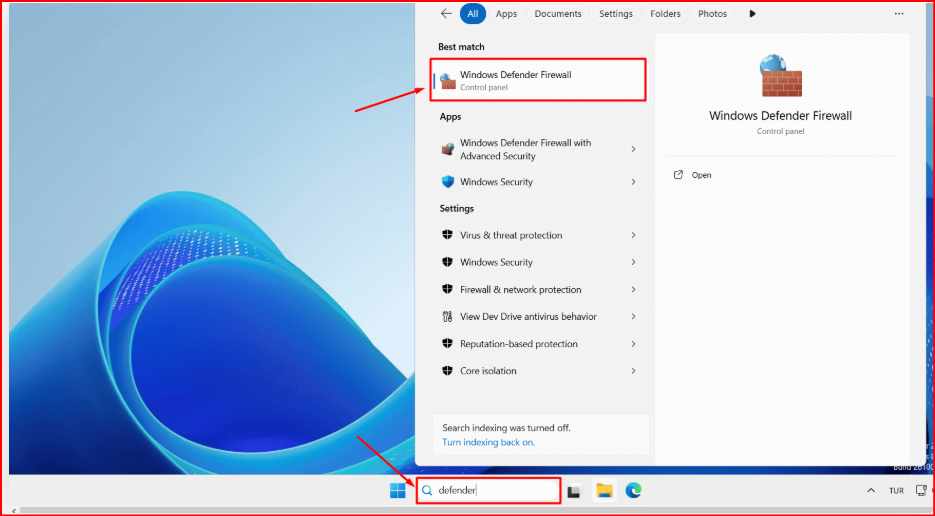
Search for Windows Defender Firewall in the Start Menu and open it. This is your control panel for all firewall rules.
Windows Defender Firewall
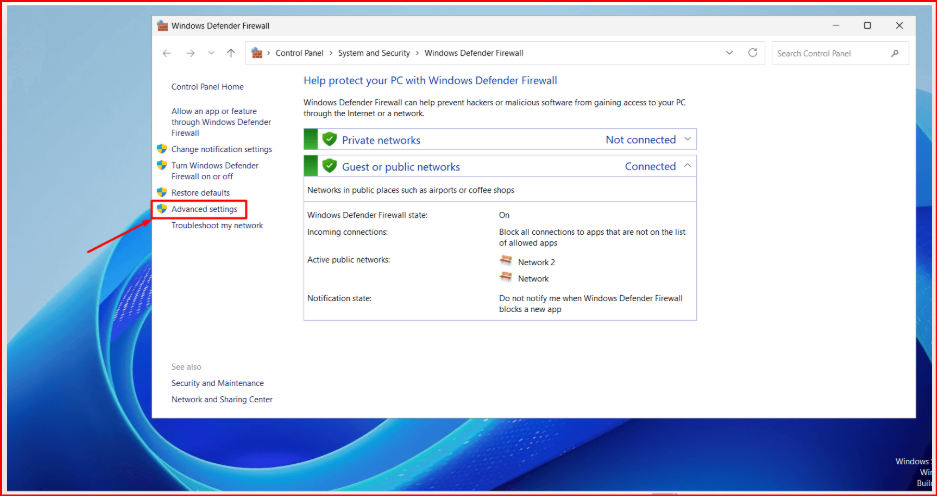
Click Advanced Settings in the left panel. This opens the full firewall management interface with all rule controls.
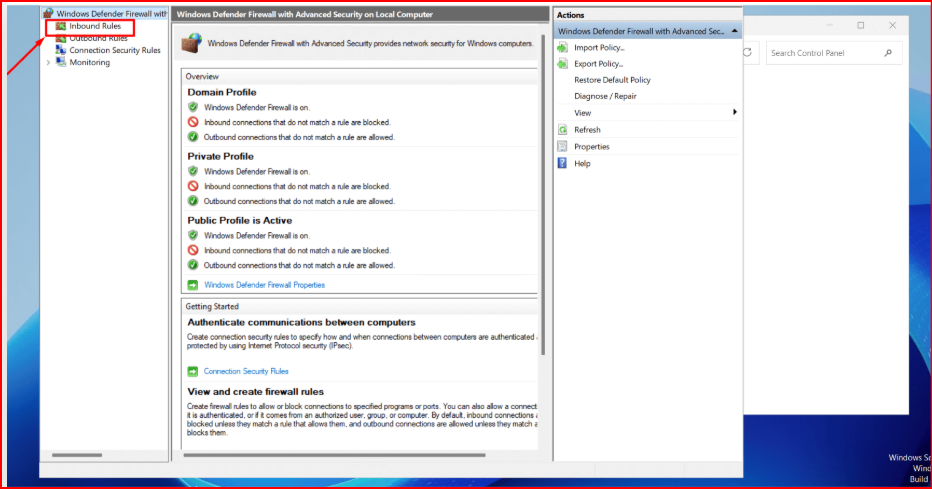
Advanced Settings →Click Inbound Rules in the left panel, then New Rule in the right panel. This launches the rule wizard.

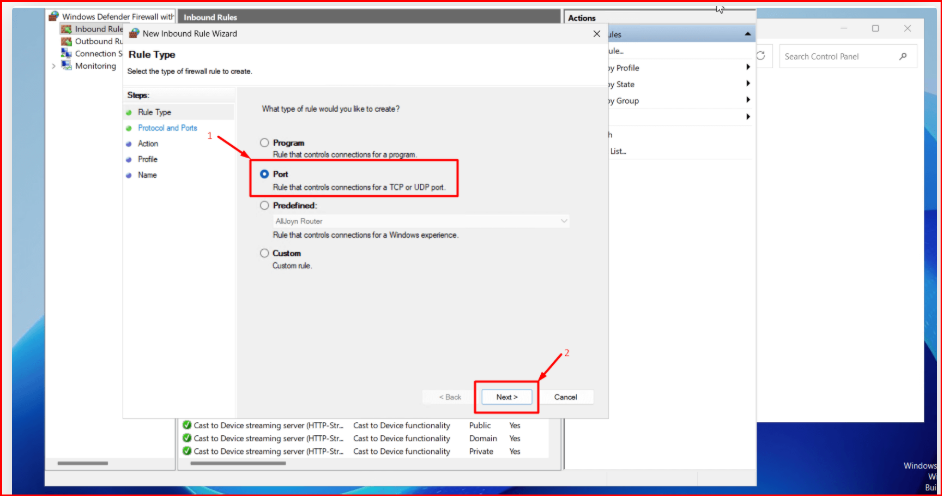
Choose Port as the rule type and click Next. This lets you target specific port numbers rather than specific programs.
○ Port → Next
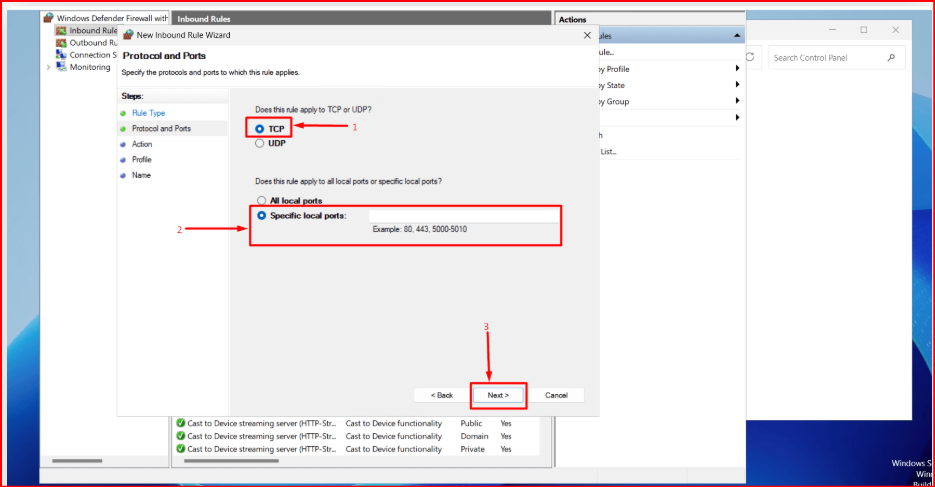
Select TCP or UDP depending on your service, then enter your port number in the Specific local ports field. You can enter multiple ports separated by commas.
80,443,25565
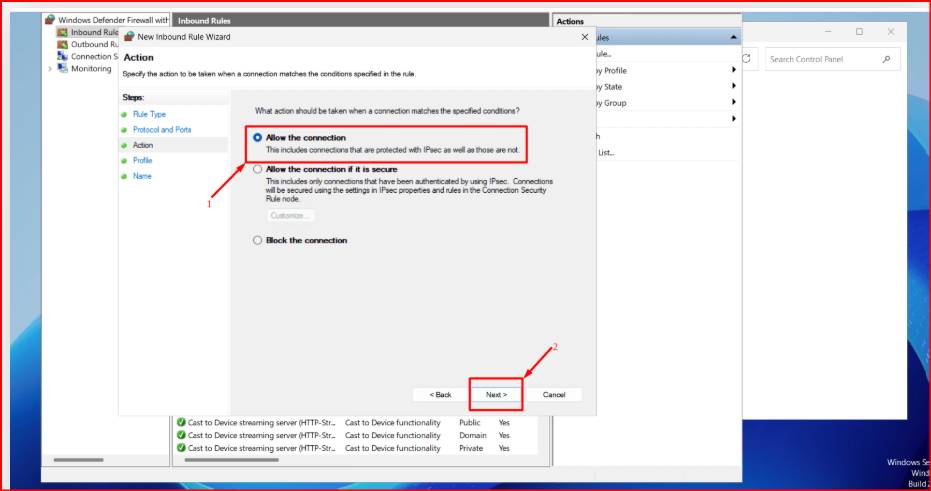
Select Allow the connection and click Next. This tells Windows to permit inbound traffic on the specified port.
○ Allow the connection
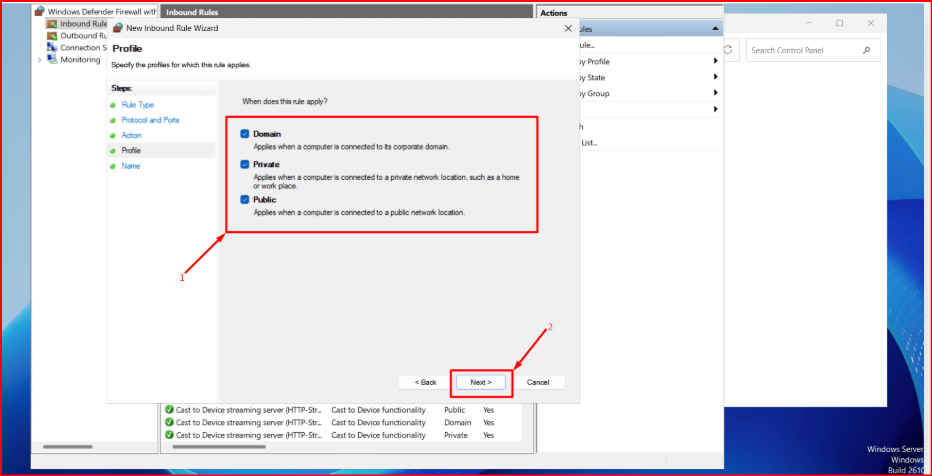
Enable all three profiles (Domain, Private, Public) for most VPS setups and click Next.

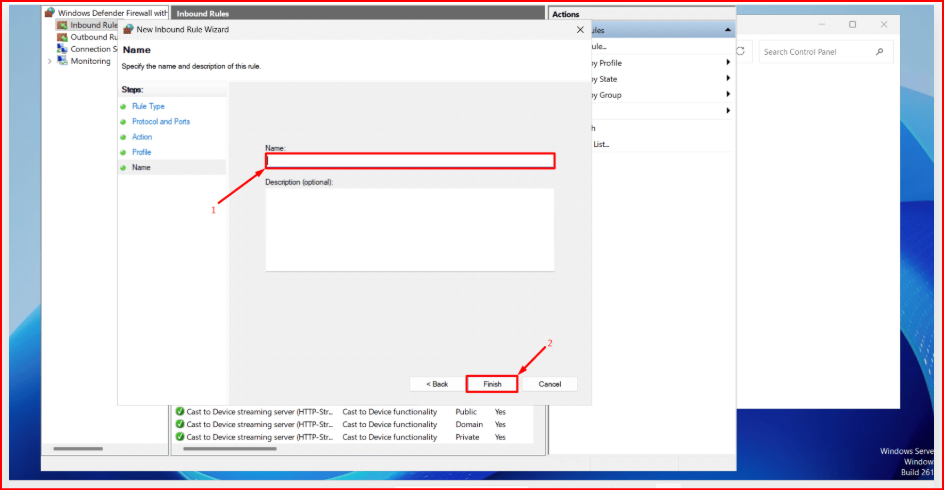
Give the rule a clear, descriptive name so you can identify it in the future. Optionally add a description. Click Finish — the rule activates instantly, no server restart needed.
Minecraft Server Port
Common Ports on Windows Servers
The most frequently opened ports and their use cases.
| Port | Protocol | Purpose | Note |
|---|---|---|---|
| 80 | TCP | HTTP Web Traffic | Standard |
| 443 | TCP | HTTPS Secure Web | Secure |
| 3389 | TCP | Remote Desktop (RDP) | Change default |
| 21 | TCP | FTP Server | Use SFTP instead |
| 25565 | TCP | Minecraft Server | Game server |
| 1194 | UDP | OpenVPN | VPN tunnel |
Four rules when opening ports
Every open port is part of your attack surface. Follow these to stay protected.
How to verify the port is open
After creating the rule, confirm it’s listening using PowerShell or an external port checker. In PowerShell, run the command below — if the port shows LISTENING, the rule is working correctly.
netstat -an | findstr :25565For external testing: yougetsignal.com/tools/open-ports
80M+ Residential IPs.
200+ Countries. From $0.60/GB.
Quantum Proxies provides premium residential, datacenter, ISP, and mobile proxies for web scraping, ad verification, sneaker bots, and automation — deployed on servers exactly like yours.